A short guide for new Tutors on Sajjad Ahmed Tutoring platform
The workflow for tutor’s is quite easy on Sajjad Ahmed Pk. We have made a short guide for new tutors. It will help understand the whole mechanism and workflow. It comprises of the following steps.
Subscription
Registration
Verification
Presentation
Comprehention
Let’s talk about these one by one.
Start here
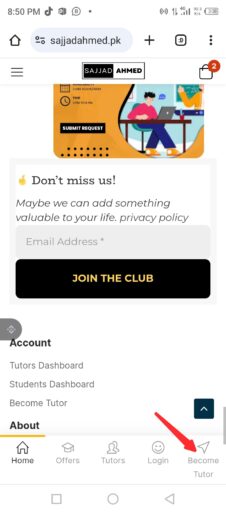
There are Become a tutor buttons on different location. One example is being given below. Click this to start.
1. Subscription
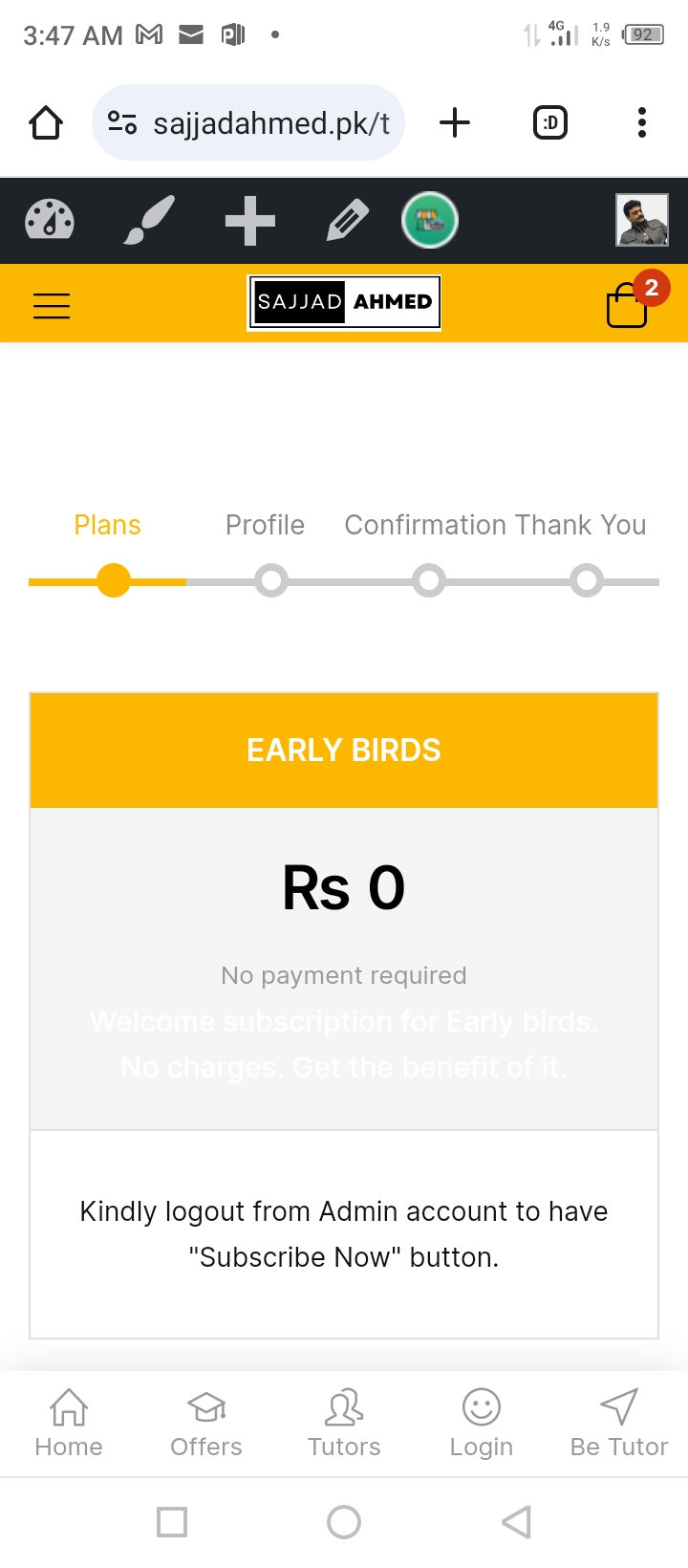
When you. hit the Becomeatutor button, a wizard starts. First step is to subscribe. It’s still free. Click subscribe
Registration
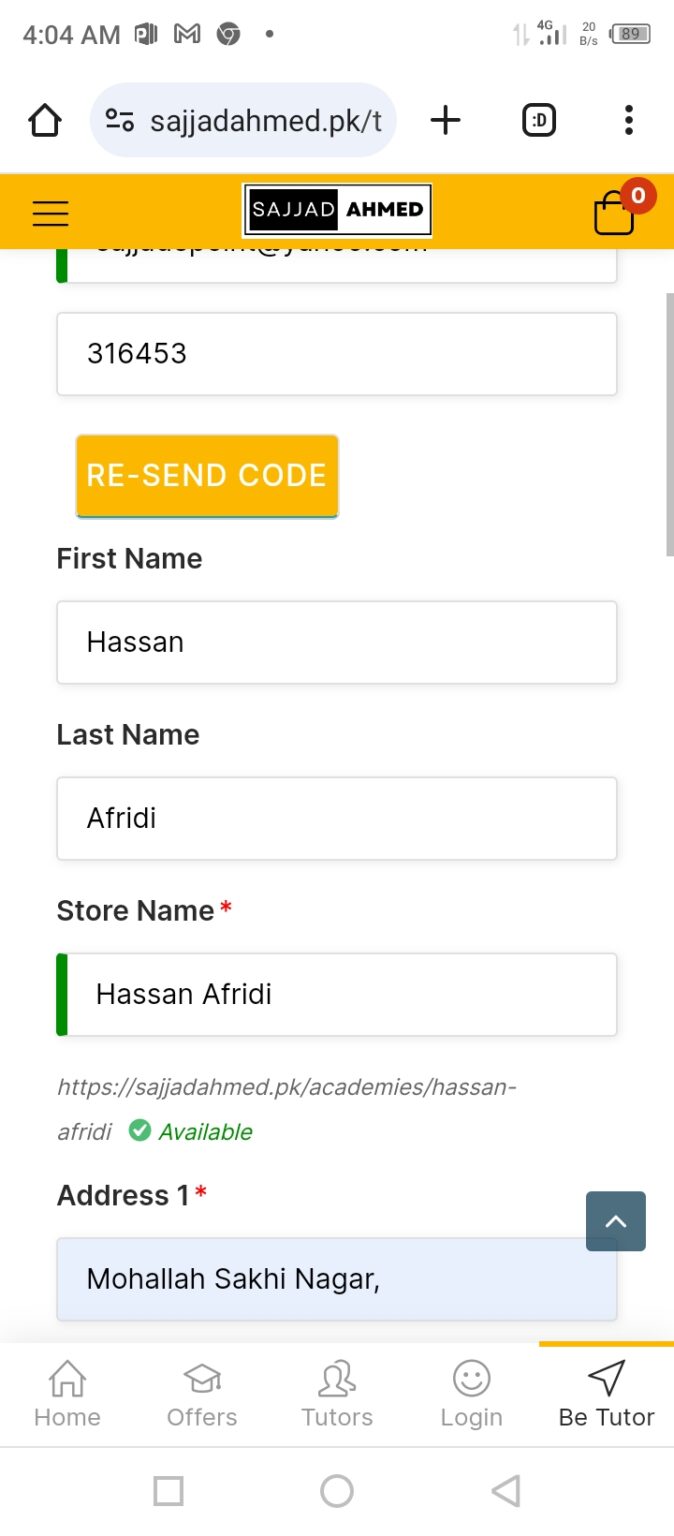
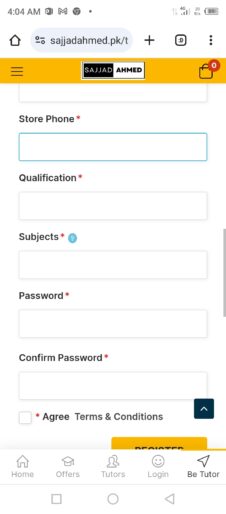
Next tutor will fill up the form and provide the necessary information. During registration, tutor has to verify email. For this put the curser in the verification code. An email will be sent containing verification code in it. Copy the code and paste. Now complete the whole form and submit.
When registration is finished, a wizard for setting up your store/academy will appear. If tutor wants to set the store/academy, follow the wizard and complete the process. Tutor can skip this but later he must set up the store. Remember, the most important part of setting up the store is to set location. Without doing this people will not be able to find you near them.
Verification
This is most important as without verification tutor will not be able to get a badge of Verified Tutor. To get this, click VERIFICATION and upload all required documents, update address if needed. Remember, check the box ‘Imply for verification’.
When it is done, wait for approval. Documents will be examined manually by the admin and tutor’s status will be changed to verified tutor.
see the image,
Presentation
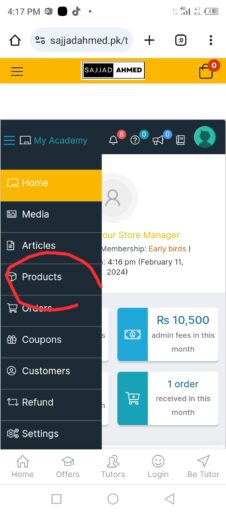
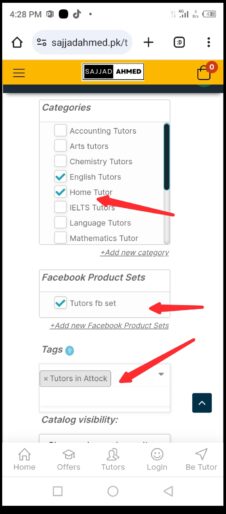
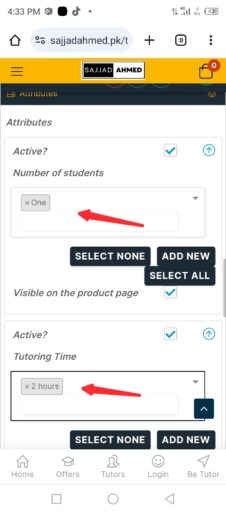
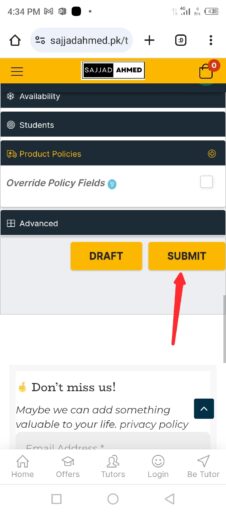
Now, this is the phase where tutor will showcase his or her expertise in the form of product. For this go to PRODUCT. Click UPLOAD. Give all the information and click submit. In the lines below, we will show you the process of making product so that tutor will be able to present attractive package In Front of the parents/students.
How to upload a product/service
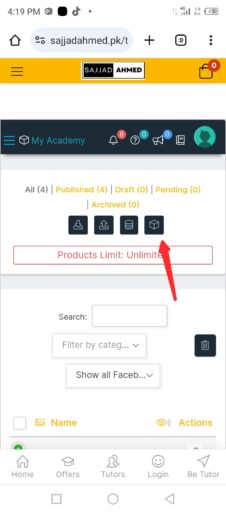
Click PRODUCT on left side bar and also click PRODUCT UPLOAD icon.
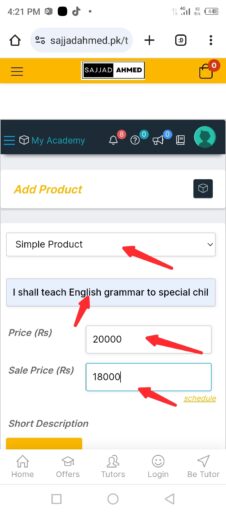
Select VIRTUAL PRODUCT. Give a catchy TITLE. Set your fee and discounted fee.
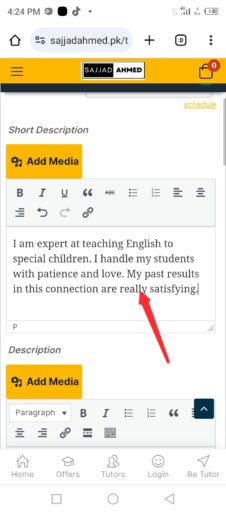
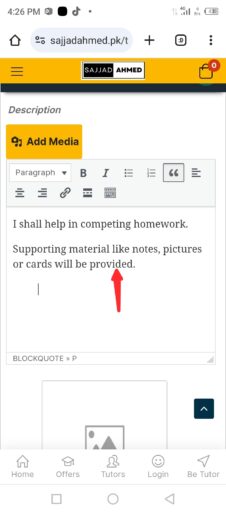
Describe your product, education, experience, methodology, material or any other thing important.